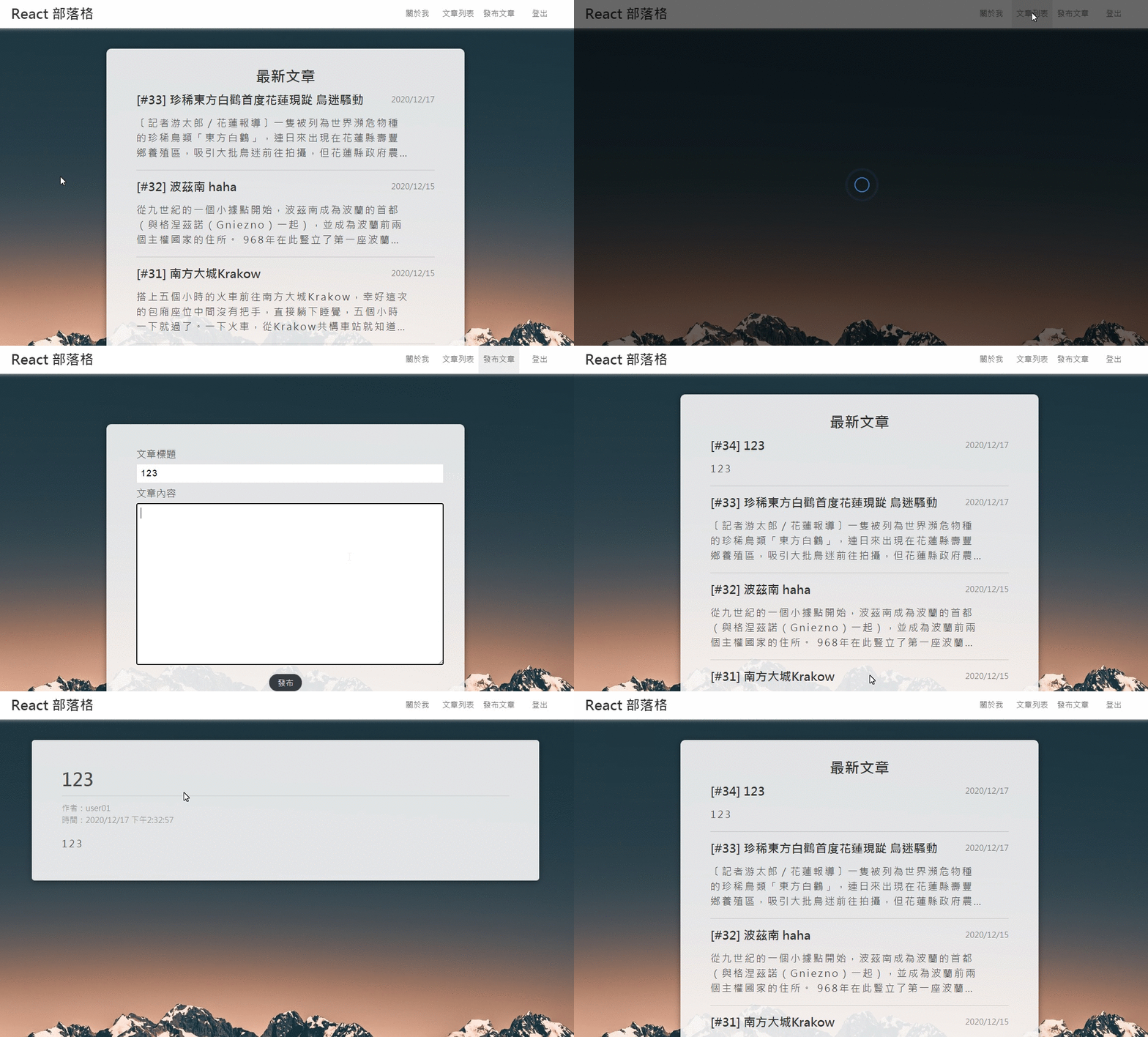
在完成部落格的基本功能之後,再來要進行優化的部分,也就是解決畫面閃爍的問題。
部落格 DEMO
一、處理登入狀態的畫面閃爍
在 [week 22] React:用 SPA 架構實作一個部落格(二)- 身分驗證 這篇筆記中,有提到登入狀態時,重整頁面會出現畫面閃爍的問題,之所以會有這個現象,是因為畫面進行了兩次 render:
- 預設為登出狀態(第一次 render)
- 當我們發 API 確認有登入之後,才會顯示登入狀態(第二次 render)
為了解決這個問題,就是在「確認是否登入之前,不要顯示和登入登出狀態有關的東西」。
App.js:設定 isLoadingGetMe 狀態
在 App.js 執行開始,就先設定一個 isLoadingGetMe,預設值為 true,也就是不顯示登入登出:
1
| const [isLoadingGetMe, setLoadingGetMe] = useState(true);
|
一旦接收到 getMe() 回傳的 response 時,或是發現沒有 token 時,就會改成 false,顯示登入登出:
1
2
3
4
5
6
7
8
9
10
11
12
13
14
15
16
17
| import { getMe } from "../../WebAPI";
import { getAuthToken } from "../../utils";
useEffect(() => {
if (getAuthToken()) {
getMe().then((response) => {
if (response.ok) {
setUser(response.data);
setLoadingGetMe(false);
}
});
} else {
setLoadingGetMe(false);
}
}, []);
|
並透過 Provider 將參數設為全域變數:
1
2
3
4
5
6
7
8
9
10
11
12
13
14
15
| import { AuthContext, LoadingContext } from "../../contexts";
<AuthContext.Provider value={{ user, setUser }}>
<Root>
<LoadingContext.Provider
value={{ isLoading, setIsLoading, isLoadingGetMe }}
>
// ...
</LoadingContext.Provider>
</Root>
</AuthContext.Provider>
|
context.js:建立 context
在 src/context.js 建立 context,初始值設為 null:
1
2
3
4
5
| import { createContext } from "react";
export const AuthContext = createContext(null);
export const LoadingContext = createContext(null);
|
首先從 context.js 引入參數,以及引入需要的 hooks:
1
2
3
4
5
| import React, { useContext } from "react";
import { Link, NavLink, useHistory, useLocation } from "react-router-dom";
import { AuthContext, LoadingContext } from "../../contexts";
import { setAuthToken } from "../../utils";
|
接著就可以根據 isLoadingGetMe 以及 user 的布林值,決定如何顯示登入狀態:
1
2
3
4
5
6
7
8
9
10
11
12
13
14
15
16
17
18
19
20
21
22
23
24
25
26
27
28
29
30
31
32
33
34
35
36
37
38
39
40
41
42
43
44
45
46
47
48
49
50
51
52
53
54
55
56
57
58
59
| export default function Header() {
const { isLoadingGetMe } = useContext(LoadingContext);
const { user, setUser } = useContext(AuthContext);
const location = useLocation();
const history = useHistory();
const handleLogout = () => {
setAuthToken("");
setUser(null);
if (location.pathname !== "/") {
history.push("/");
}
};
return (
<HeaderContainer>
<Brand>
<Link to="/" replace>
React 部落格
</Link>
</Brand>
<NavbarList>
<StyledLink exact to="/about" replace activeClassName="active">
關於我
</StyledLink>
<StyledLink to="/post-list/" replace activeClassName="active">
文章列表
</StyledLink>
{isLoadingGetMe ? (
<LoadingGetMe>資料讀取中...</LoadingGetMe>
) : (
<>
{!user && (
<StyledLink to="/register" replace activeClassName="active">
註冊
</StyledLink>
)}
{!user && (
<StyledLink to="/login" replace activeClassName="active">
登入
</StyledLink>
)}
{user && (
<StyledLink to="/new-post" replace activeClassName="active">
發布文章
</StyledLink>
)}
{user && (
<StyledLink to="" replace onClick={handleLogout}>
登出
</StyledLink>
)}
</>
)}
</NavbarList>
</HeaderContainer>
);
}
|
重點在於 isLoadingGetMe 的判斷邏輯:
- 如果 isLoadingGetMe 為 true,就不會顯示裡面和登入狀態有關的東西
- 當 isLoadingGetMe 為 faluse,才會再根據 user 是否為 true,決定要顯示「註冊、登入」還是「發布文章、登出」
1
2
3
4
5
6
7
8
9
10
11
12
13
14
15
16
17
18
19
20
21
22
23
24
25
26
| {isLoadingGetMe ? (
<LoadingGetMe>資料讀取中...</LoadingGetMe>
) : (
<>
{!user && (
<StyledLink to="/register" replace activeClassName="active">
註冊
</StyledLink>
)}
{!user && (
<StyledLink to="/login" replace activeClassName="active">
登入
</StyledLink>
)}
{user && (
<StyledLink to="/new-post" replace activeClassName="active">
發布文章
</StyledLink>
)}
{user && (
<StyledLink to="" replace onClick={handleLogout}>
登出
</StyledLink>
)}
</>
)}
|
二、處理呼叫 API 造成的畫面閃爍
當我們需要 call API 時,必須考慮到非同步的問題。舉例來說,當我們進入文章列表時,第一次 render 會先看到空的列表,第二次 render 才會出現文章。
為了解決這個問題,我們可以將第一次 render 改為 Loading 畫面,等到第二次 render 再顯示文章頁面。
那麼就開始吧!
App.js:設定 isLoading 狀態
首先,同樣在 APP 執行時就先設第一個 isLoading 狀態,預設值為 false,當我們有進行 call API 的動作時才會設為 true:
1
| const [isLoading, setIsLoading] = useState(false);
|
同樣透過 Provider 將參數設為全域變數:
1
2
3
4
| <LoadingContext.Provider
value={{ isLoading, setIsLoading, isLoadingGetMe }}>
</LoadingContext.Provider>
|
PoseListPage.js:根據 isLoading 狀態顯示畫面
接著引入 context,還有 isLoading 時要顯示的 Loading component:
1
2
3
| import React, { useState, useEffect, useRef, useContext } from "react";
import { LoadingContext, AuthContext } from "../../contexts";
import Loading from "../../components/Loading";
|
接著是根據 isLoading 狀態顯示畫面,在 call API 時會設為 true,直到接收 response 後會設為 false:
1
2
3
4
5
6
7
8
9
10
11
12
13
14
15
16
17
18
19
20
21
22
23
24
25
26
27
28
29
| export default function HomePage() {
const { isLoading, setIsLoading } = useContext(LoadingContext);
const [posts, setPosts] = useState([]);
useEffect(() => {
setIsLoading(true);
getPosts()
.then((posts) => setPosts(posts))
.then(() => {
setIsLoading(false);
});
}, [setIsLoading]);
return (
<Root>
{isLoading ? (
<Loading />
) : (
<PostsListContainer>
<PostsListTitle>最新文章</PostsListTitle>
{posts && posts.map((post) => <PostList post={post} key={post.id} />)}
<ReadMore>
<Link to="/post-list">查看更多</Link>
</ReadMore>
</PostsListContainer>
)}
</Root>
);
}
|
三、透過 react-spinner 設定 loading 畫面
使用方法可參考 davidhu2000 / react-spinners 介紹,以及樣式 DEMO
安裝套件
1
| npm install react-spinners --save
|
官方使用範例
官方範例是用 class component 去寫的,但其實概念和 function component 沒有差太多,狀態就從 App.js 設定的 isLoading 去判斷即可:
1
2
3
4
5
6
7
8
9
10
11
12
13
14
15
16
17
18
19
20
21
22
23
24
25
26
27
28
29
30
31
32
| import React from "react";
import { css } from "@emotion/core";
import ClipLoader from "react-spinners/ClipLoader";
const override = css`
display: block;
margin: 0 auto;
border-color: red;
`;
class AwesomeComponent extends React.Component {
constructor(props) {
super(props);
this.state = {
loading: true
};
}
render() {
return (
<div className="sweet-loading">
<ClipLoader
css={override}
size={150}
color={"#123abc"}
loading={this.state.loading}
/>
</div>
);
}
}
|
改寫 Loading component 如下:
1
2
3
4
5
6
7
8
9
10
11
12
13
14
15
16
17
18
19
20
21
22
23
24
25
| import React from "react";
import styled from "styled-components";
import { PuffLoader } from "react-spinners";
const LoadingWapper = styled.div`
position: fixed;
top: 0;
left: 0;
right: 0;
bottom: 0;
background: rgba(0, 0, 0, 0.6);
display: flex;
align-items: center;
justify-content: center;
`;
export default function Loading() {
return (
<LoadingWapper>
<PuffLoader size={60} color={"#4A90E2"} />
</LoadingWapper>
);
}
|
效果如下:
![]()